


Functions of a Operating System
Contents
Toggle1. Process Management: Keeping Tasks in Line
A process means a program in execution. Every action on a computer device, from typing texts, to articles, to streaming a video, is a “process.” The OS manages these like a traffic cop at a busy intersection. It schedules processes using algorithms , decides when to start or stop them, and handles communication between them.
This means the OS prevents one app from monopolizing the system phone—why else could we pause a game to answer a message? Advanced concepts include priority scheduling, where critical tasks (like a virus scan) get VIP access to the CPU, ensuring the system doesn’t lag during updates.
Lets understand it with a real life example . Think of a school cafeteria during lunch rush. The OS is the lunch lady directing students (processes) to trays, seats, and food lines. If one kid hogs the dessert (CPU time), others wait forever—bad! The lunch lady switches lines fairly, just as the OS multitasks to keep the workflow smooth.
2. Memory Management: The Smart Storage Butler
Memory (RAM) is the computer’s short-term workspace which is fast but limited, like a desk cluttered with papers. The OS allocates space for processes, tracks what’s used, and swaps data to storage (the hard drive) when RAM fills up, a trick called virtual memory.
This is why closing unused apps speeds up the computer. For pros, delve into paging and segmentation ; dividing memory into fixed blocks or logical chunks to minimize waste, preventing the “out of memory” errors that crash games.
For example , organizing a garage sale. Items (data) pile up on tables (RAM), but when space runs out, you box extras to the attic (virtual memory). A good organizer (OS) labels everything to find it quickly, avoiding the chaos of rummaging through boxes mid-sale. In e-commerce, like Amazon’s servers, this ensures your cart doesn’t vanish during checkout because the OS juggles millions of user sessions without dropping the ball.
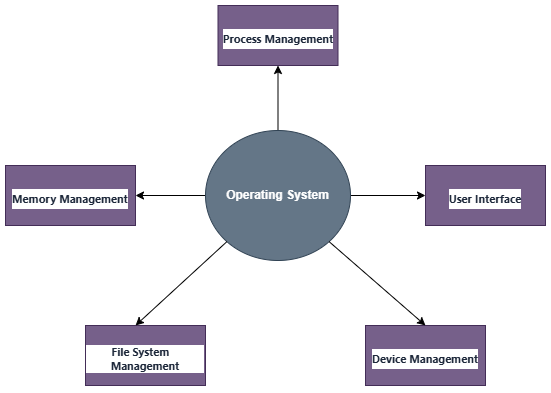
3. File System Management: Organizing Your Digital Life
Files—documents, photos, videos—need a home. The OS creates a file system (like NTFS for Windows or ext4 for Linux) to store, retrieve, and protect them in folders, much like a library catalog. It handles naming, permissions and backups.
Think of a shared family photo album. The OS is the librarian deciding album sections (directories), who adds pictures (write access), and restoring lost ones (recovery). Without it, your vacation pics scatter like confetti. In banking apps, file management secures transaction logs, ensuring your balance updates accurately even if the app glitches—trustworthy, like a vault.
4. Device Management: Talking to Hardware
The OS communicates with peripherals via drivers—software translators for printers, webcams, etc. It queues requests, like a receptionist handling calls.
Plug in a USB drive, and the OS mounts it instantly. Deeper: Interrupt handling pauses the CPU for urgent inputs, like a doorbell ringing during a meeting.
For example driving a car. The OS is the dashboard, interpreting pedal presses (input) to control speed (output) and warning lights (interrupts). Ignore the gas gauge? Trouble! Self-driving cars amplify this: The OS processes sensor data in real-time, braking for obstacles life-or-death coordination.
5. User Interface: The Friendly Face
The OS provides a shell—command-line (like Terminal) or graphical (icons and menus). It’s the interaction layer, customizable for efficiency.
Beginners love GUIs for drag-and-drop ease; experts tweak CLIs for speed in scripting.
For example, a restaurant menu (GUI) vs. calling the chef directly (CLI). Most order from the menu, but pros shout custom requests. Social media platforms use this: Instagram’s swipe interface hides the OS magic, but developers access APIs (CLI-like) for custom feeds.